
Promote your Community Hour on Facebook
How to turn an approved Community Hour into an Eventbrite listing and Facebook posts, choosing the groups and wording yourself.
Lithi drafts your Facebook posts for a Community Hour; you choose the groups and versions, click Post yourself and confirm each one. Open Marketing > Community Hours, create your event or open one you have already prepared, and follow the six steps below.
| Lithi does | You do |
|---|---|
| Creates the Eventbrite listing and adds your event's Details & RSVP link to every draft | Approve the event details and confirm the venue |
| Suggests local Facebook groups from their public descriptions and rules | Read each group, choose, and join |
| Drafts five versions of each post, with a matching poster, and keeps your calendar | Pick a version and plan when to post |
| Opens the group in Safari and fills Facebook's composer | Review it, click Facebook's Post, and confirm |
The screenshots on this page come from the Lithi app demo, with sample groups and event details. Select any screenshot to open it full size.
1. Approve your event
Set the title, date, time zone, place and capacity. For an in-person event, choose the venue and record its permission. Once you approve the details and the venue is confirmed or not required, Lithi creates and publishes the Eventbrite listing. Every post Lithi drafts already ends with your event's Details & RSVP link, so there is nothing to paste.
2. Choose and join local groups
Open the event's Facebook workspace. Lithi suggests local groups. Read each group's details and choose the ones where your event would be welcome.
- Choose Join group. Facebook opens in Safari with the Lithi companion beside it.
- Answer Facebook's membership questions yourself.
- Back in Lithi, choose I joined or I requested to join.
For a group you don't want, choose Skip for now or Not a fit. If your request is pending, wait for Facebook to accept it before posting.
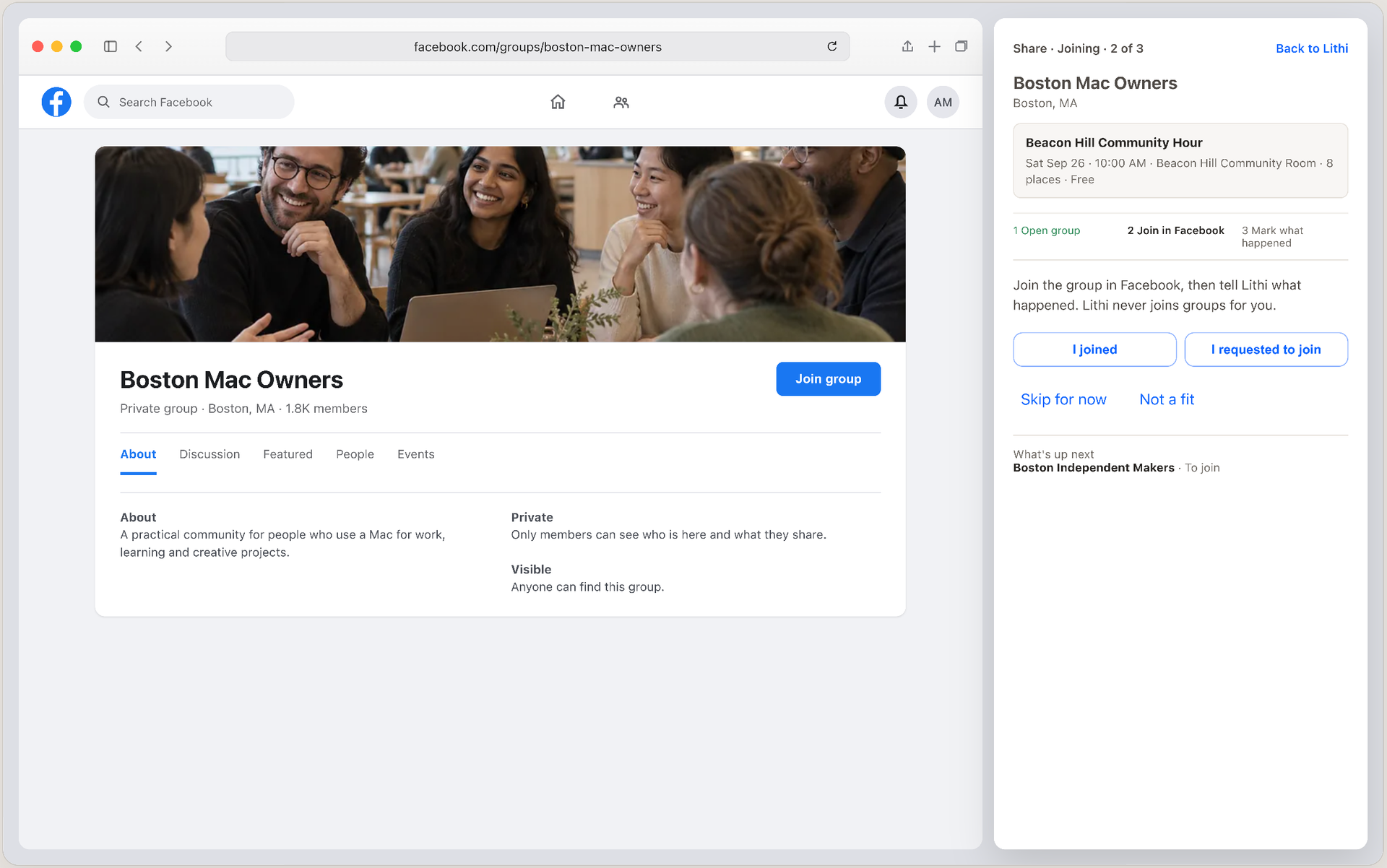
Joining a group with the Lithi companion beside Facebook.
3. Choose a version of each post
Each group post comes in five versions, with wording fitted to the group. Image posts include the matching poster. Use the Previous and Next arrows to compare them, and check the title, date, place and image before you choose.
Here is the shape of a typical caption. Lithi fills in the link line for you:
Beacon Hill neighbors — come along for coffee and a Lithi demo.
- See how the Macs we already own can help run AI.
- Find out how your Mac could earn overnight, on a schedule you choose.
- Sat Sep 26 at 10:00 AM · Beacon Hill Community Room
- Free entry · 8 places
Details & RSVP: https://lithi.ai/join/dana-482913
Open Poster & QR to review the poster. The sample poster, Compute, over coffee., invites people for coffee, conversation and a Lithi demo. Its QR code, labelled Scan to reserve or learn more, takes people to your event's page. Use Print poster or Save as PDF to share it. "Could earn overnight" depends on available work and accepted results. "Free entry" means admission, so confirm coffee with the venue.
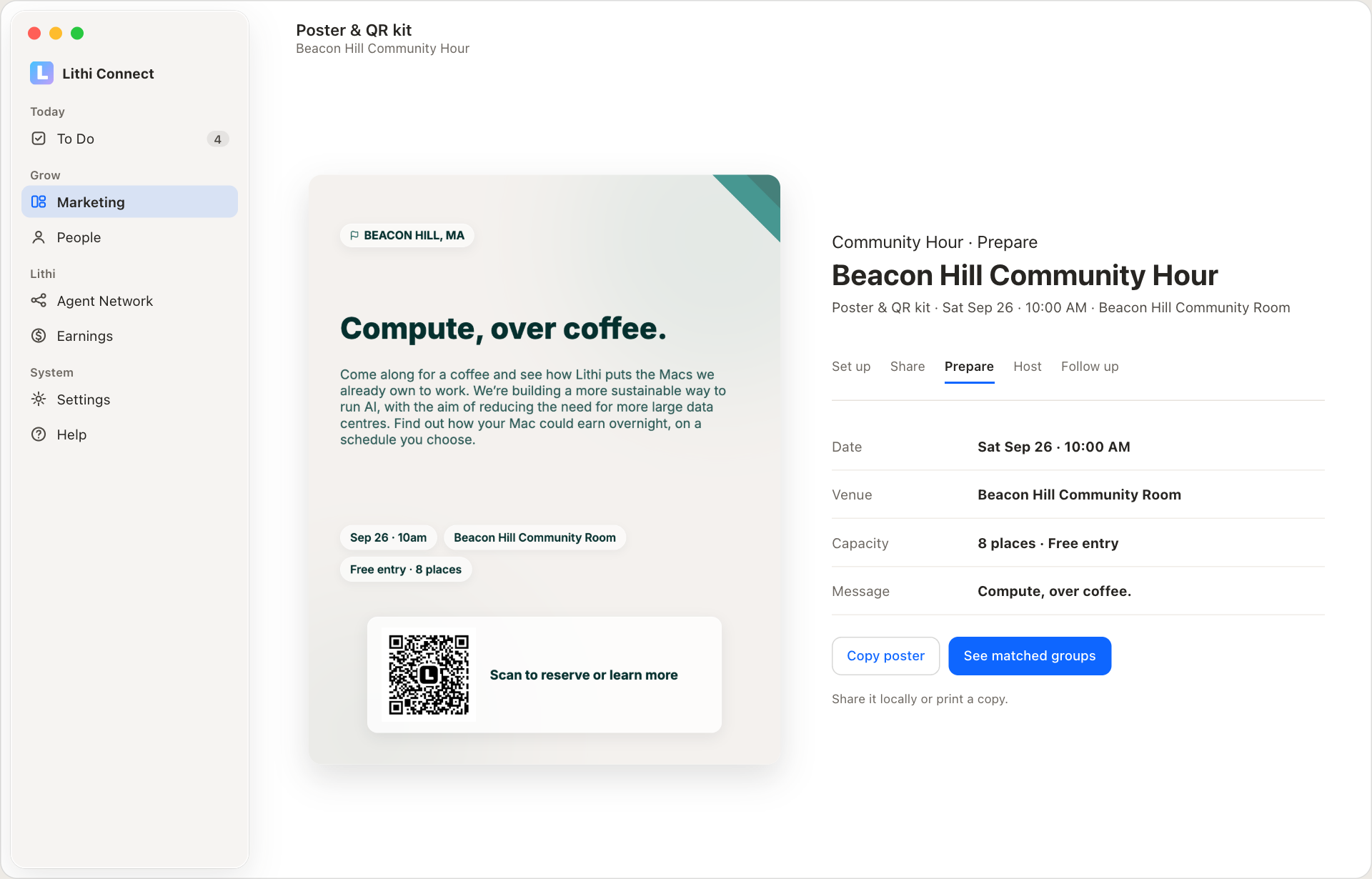
The sample poster in the Poster & QR kit.
4. Plan when to post
The Facebook Calendar holds your chosen groups, versions and planned times. List and Board show the same items. Plan each post around that group's posting rules.
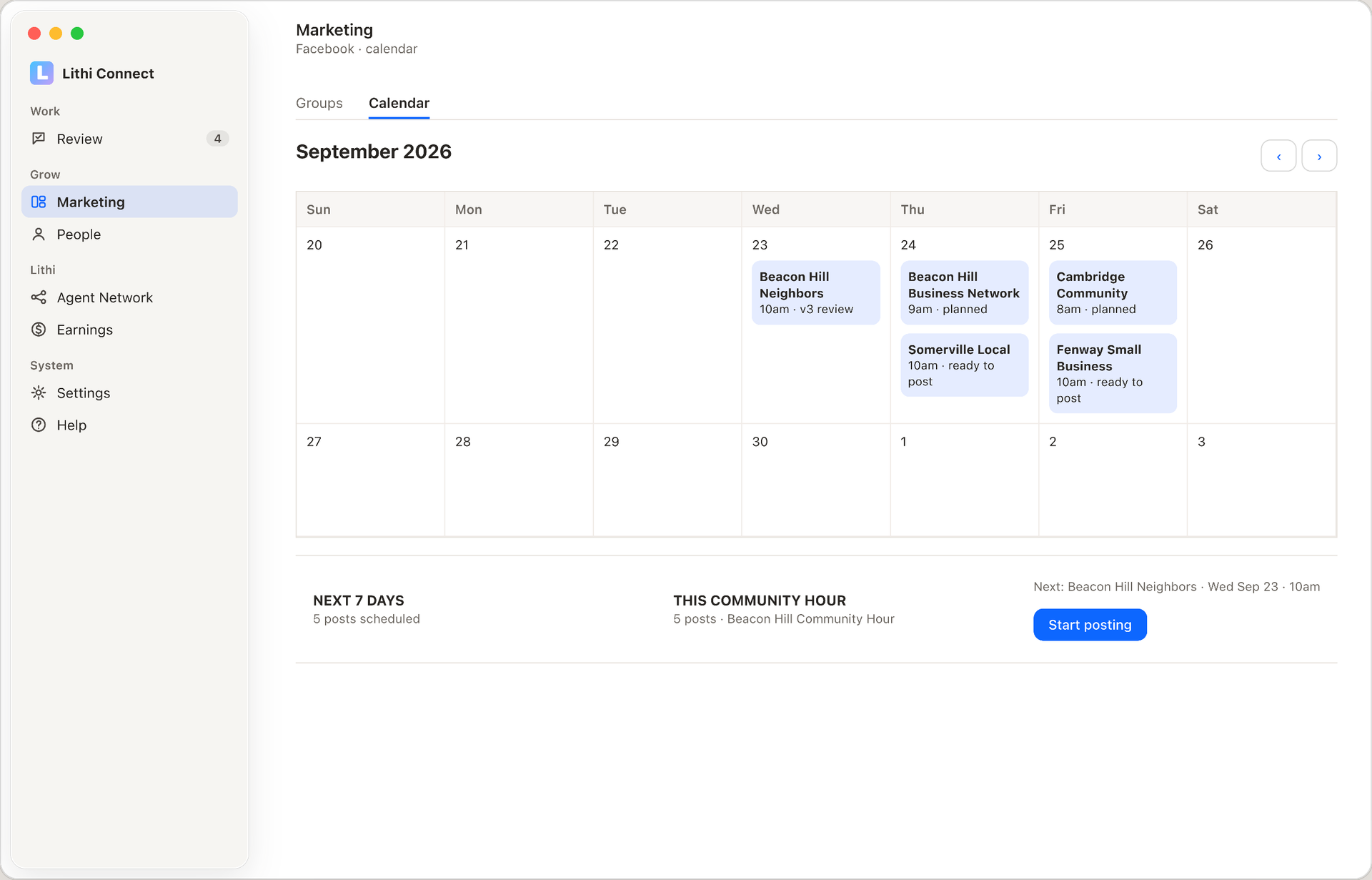
Five planned posts leading up to the event.
5. Post in Facebook
When a calendar item is ready, choose Start posting. Lithi opens the group in Safari and places the post and poster in Facebook's composer.
- Review the text, date, place and image, and make any final edits.
- Click Facebook's Post yourself.
- In the companion, choose I posted · Confirm. Choose Skip this group to leave it for later.
If Lithi can't fill the composer, choose Copy caption, click Facebook's post box and press ⌘V, then choose Copy image and paste the poster.
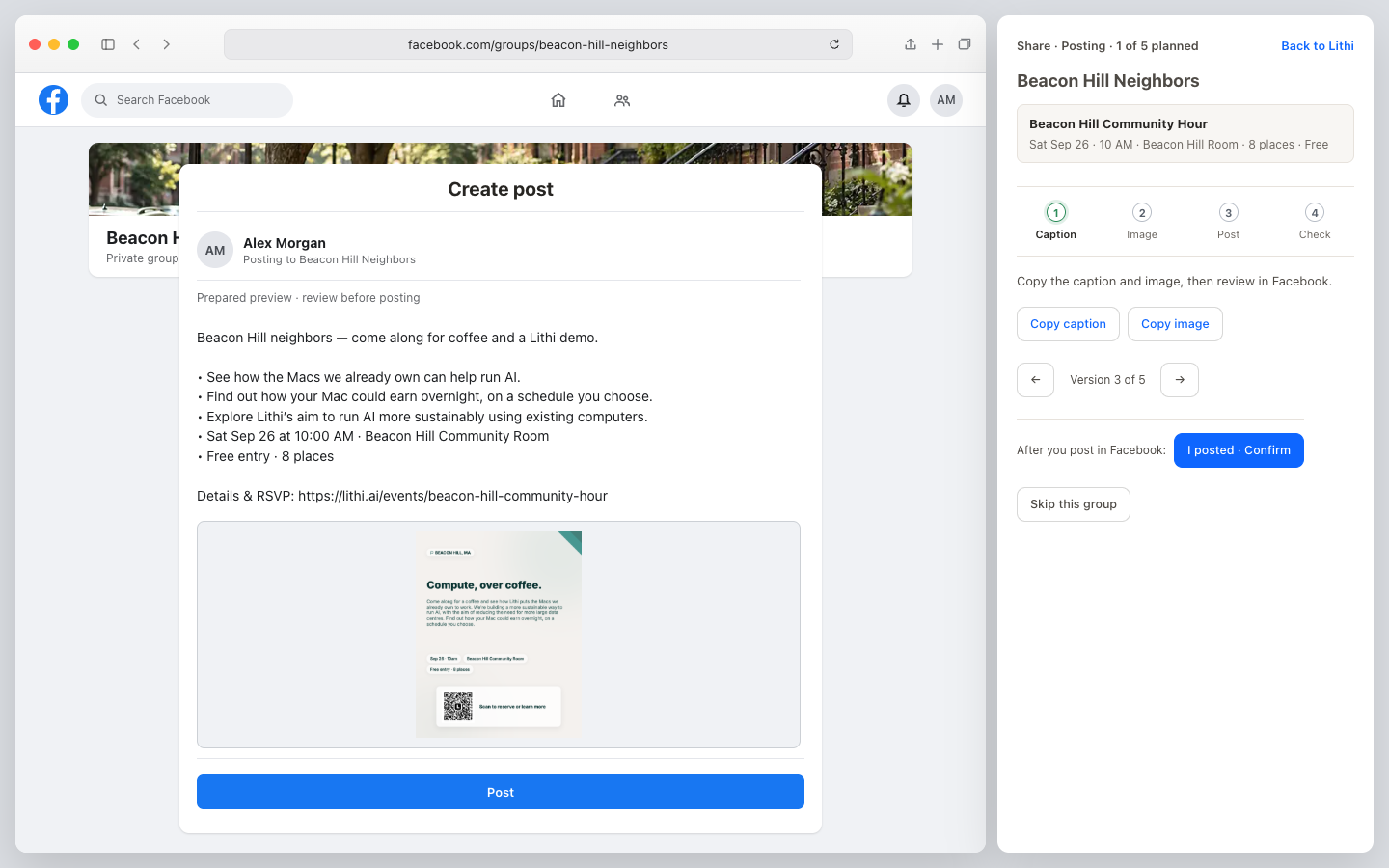
Posting with the companion beside Facebook.
6. After you post
If Facebook holds a post for moderation, leave it pending until Facebook shows the result. If your event details change, review the drafts and calendar again before posting more. The same Community Hour is where you host, take attendance and follow up.